
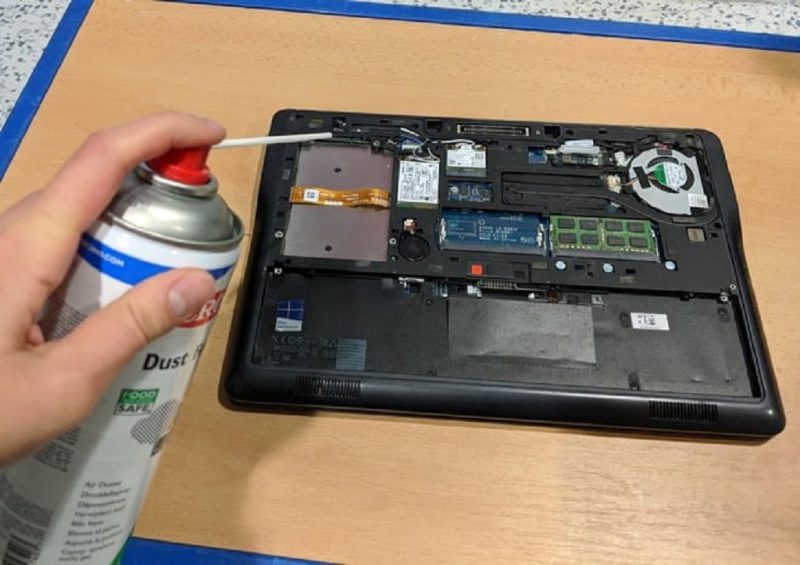
Dust and dirt build up inside laptops over time, causing heating issues, slower performance, and noisy fans. While a full deep clean usually requires opening the device, many people don’t feel comfortable removing screws or plates. If done incorrectly, it can even void your warranty or damage sensitive parts. The good news is you can still maintain your Dell Inspiron safely without dismantling it. This guide shows you step by step how to clean your laptop from the outside while keeping the inside protected.
How can I clean dust from my Inspiron laptop without opening it?
If you’re wondering how clean inspiron laptop without removing plates and screws, the answer lies in safe surface cleaning and controlled airflow. Instead of taking apart the device, you can focus on its vents, keyboard, and screen. A can of compressed air and a soft microfiber cloth are your best tools. Always hold the laptop at an angle and spray short bursts into the air vents to push out hidden dust. Avoid using a vacuum directly, as the suction can harm delicate fans.
What materials do I need for safe cleaning?
Here’s what you’ll need before starting:
- Compressed air can
- Soft microfiber cloth
- 70% isopropyl alcohol (for stubborn spots)
- Cotton swabs (for edges and corners)
These items are widely available and inexpensive. According to Dell’s own cleaning recommendations, isopropyl alcohol is safe in small amounts when used with lint-free cloths. However, always apply it on the cloth first, never directly on the device.
How do I clean the laptop vents without taking it apart?
The air vents are crucial because they allow heat to escape. Blocked vents make the fan work harder, which shortens the laptop’s lifespan. To clean them:
- Turn off and unplug your Inspiron.
- Hold it at a slight angle so dust falls outward, not deeper inside.
- Use compressed air in short bursts. Avoid continuous spraying as it may cause moisture buildup.
This method loosens dust without needing to unscrew the bottom panel. Additionally, wiping the vents with a dry cotton swab can remove stubborn particles.
Can I safely clean the keyboard without removing keys?
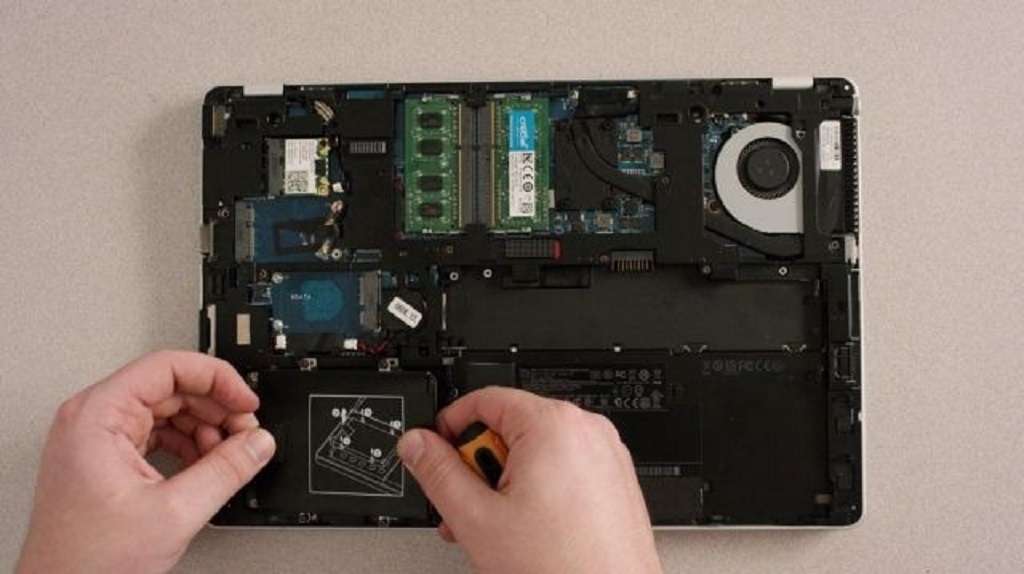
Yes. The keyboard often collects dust, crumbs, and oils from fingers. Start by flipping the laptop upside down and gently shaking it to dislodge debris. Then:
- Spray compressed air between keys to remove fine particles.
- Wipe the keys with a slightly damp microfiber cloth.
- For oily marks, use a cloth lightly dampened with isopropyl alcohol.
Avoid pouring liquid cleaners or using excessive moisture, as it can seep inside. A regular cleaning routine keeps the keys responsive and prevents dirt buildup under them.
How do I clean the screen properly?
Laptop screens are delicate, so avoid harsh chemicals like ammonia or window cleaners. Instead:
- Turn off the laptop for better visibility of smudges.
- Use a dry microfiber cloth to wipe gently in circular motions.
- For stubborn smudges, lightly dampen the cloth with distilled water or a 50/50 mix of water and isopropyl alcohol.
Never spray liquid directly on the screen. This ensures no moisture seeps into the edges. A clean display not only looks better but also reduces eye strain.
What should I avoid when cleaning without opening?
Certain mistakes can cause more harm than good:
- Avoid household cleaners like bleach or glass cleaner.
- Do not use sharp tools or pins to scrape dirt.
- Do not blow directly with your mouth, as moisture can reach the circuits.
- Avoid running compressed air cans upside down – this may release liquid propellant.
Being careful with these steps ensures your Inspiron stays safe during maintenance.
How often should I clean my Inspiron laptop externally?
Frequency depends on your environment. If you work in a dusty room, clean vents and keyboards weekly. For normal use, a monthly cleaning is enough. The screen can be wiped as often as needed. Regular care helps prevent overheating and extends your laptop’s life span.
Does this method replace internal cleaning?
No, it complements it. External cleaning keeps the laptop running efficiently, but over the years, internal dust may still gather. Professional servicing every one to two years is recommended. Until then, surface cleaning with compressed air and microfiber cloths is the safest routine for everyday users.
Read More Also: TikTok Search for Keyword Research
Conclusion
You don’t need to be a technician to keep your Dell Inspiron in good shape. By cleaning the vents, screen, and keyboard from the outside, you can prevent common issues like overheating and sticky keys without unscrewing a single plate. For step-by-step guides on DIY laptop care, you can also explore Index Marks. Regular upkeep saves money, reduces wear, and keeps your laptop running smoothly for years to come.
FAQs
Can I use a vacuum cleaner instead of compressed air?
It’s not recommended. Vacuums create static electricity and strong suction that can damage small fans. Compressed air is safer and designed for electronics.
Is it safe to use wet wipes on my laptop?
Only if they are alcohol-based disinfectant wipes. Standard household wipes may leave residue or moisture that seeps into the device.
How do I remove sticky spots from the laptop body?
Apply a small amount of isopropyl alcohol on a microfiber cloth and gently rub the area. Avoid soaking it, as liquid should never seep into seams.
Does cleaning without opening affect laptop performance?
Yes. Clearing vents and keyboard dust helps fans run efficiently and prevents overheating, which keeps performance stable over time.
Can I clean my laptop while it’s on?
No. Always turn off, unplug, and let it cool before cleaning. This reduces risk of electric shock and prevents damage from static or moisture.
How often should I replace compressed air cans?
Compressed air doesn’t expire, but once the pressure weakens, replace it. Frequent users may need a new can every 6–12 months.
What if dust keeps coming back quickly?
If you live in a dusty environment, consider using a laptop cooling pad with dust filters and keep your workspace clean. This reduces how often you need to clean the vents.
Read More: Cleaning tips for a laptop for every user https://ltechuk.com/clean-laptop-without-damaging/
